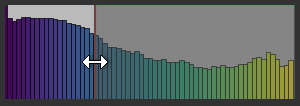
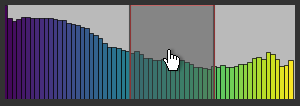
Evaluating Scalar Meshes with the Measurement Inspector
You can evaluate the different statistical properties available for scalar meshes, as well as select a color ramp, make range selections, and adjust opacity settings in the Measurement Inspector.
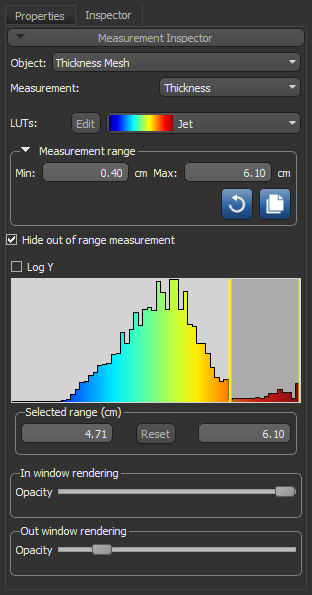
To open the Measurement Inspector panel shown below, right-click a mesh that contains scalar information and then choose Measurement Inspector in the pop-up menu.
Measurement Inspector
| Description | |
|---|---|
| Object | Lets you select the mesh to examine in the scene views. |
| Measurement |
Lets you select the measurement to plot in the histogram and view onscreen.
Note You can rename a measurement by double-clicking inside the Measurement box. |
| LUTs | Lets you select a LUT function to apply to the histogram and views of the selected mesh in the current scene (see Using the LUT Editor for information about editing a LUT). |
| Measurement range |
Lets you select the range of data that will be plotted, as follows:
|
| Hide out of range measurement | If selected, values that are outside the selected measurement range will not be shown in the views of the selected mesh in the current scene. |
| Log Y | If selected, the values on the Y axis will be plotted in log scale on the histogram. |
| Histogram |
Shows how values are distributed in the selected mesh and lets you adjust the threshold values for the In window and Out window rendering options.
|
| Selected range |
Indicates the minimum and maximum threshold values, which define the In window range.
|
| In window rendering | Determines the opacity of the In window values in the views of the selected mesh in the current scene. |
| Out window rendering | Determines the opacity of the Out window values the views of the selected mesh in the current scene. |
 button to reset the measurement data range to the original values.
 button to apply the data range of another measurement to the current measurement, either from the current mesh or from another object.